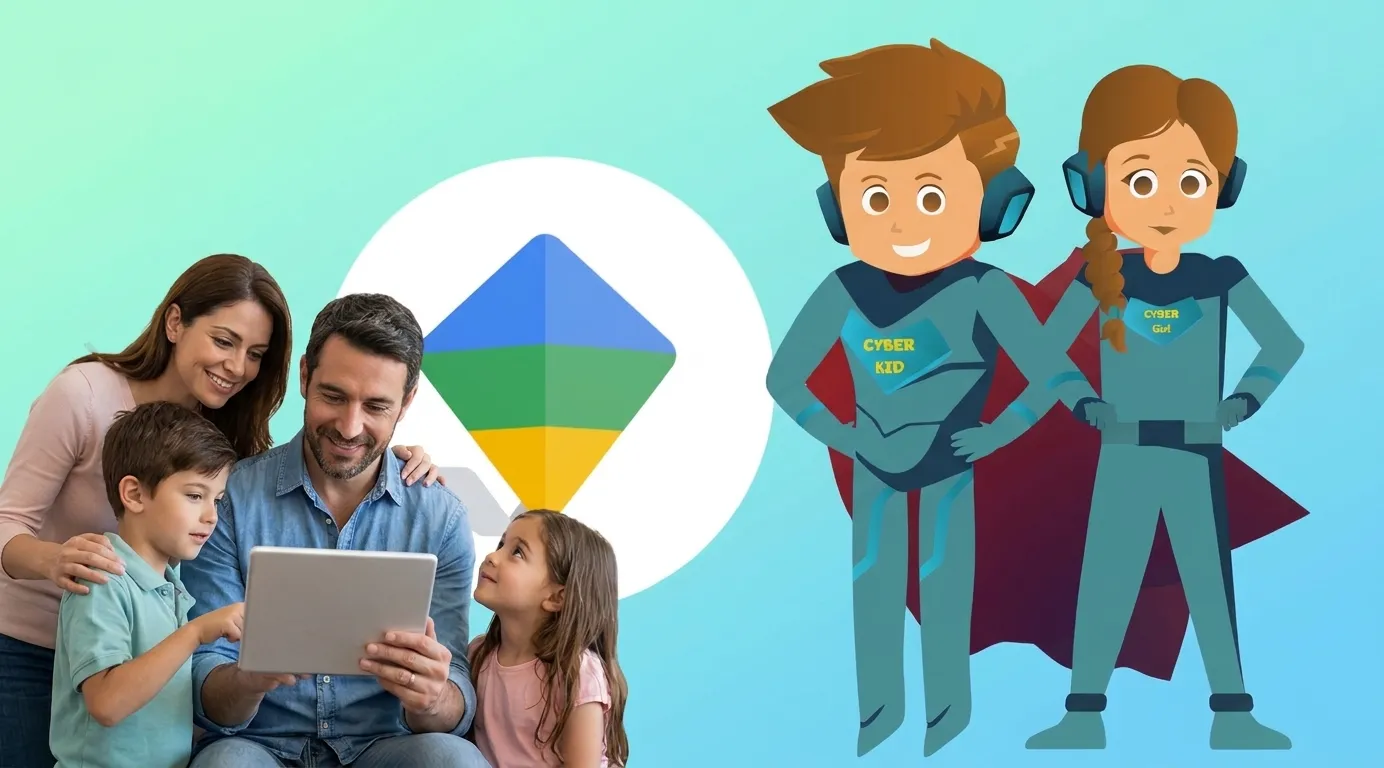
Google Family Link is a free service that helps parents manage screen time, apps and some content settings on a child's compatible device. Get started by linking your child's account to yours and setting up supervision, then agree on clear family rules. This guide explains the steps and the tool's limits, with official Google sources.
Agree on the rules before changing settings
Sit down with your child and explain what you are going to do: “We will look together at where your phone time goes, then choose times for games, study and rest.” Ask which apps they enjoy and what makes them hard to put down. Explain any use of location sharing, too. This helps your child understand supervision and take part in setting the rules.
What is Google Family Link?
Family Link is a free Google service that helps parents manage some aspects of their children's use of compatible devices. Its tools include app activity reports, screen time limits, app management, and some content and location settings.
Check device compatibility first: a parent can use the Family Link app on a compatible Android phone or iPhone. Managing a child's device and screen time requires a supported device, such as Android or a Chromebook. The same screen time and app controls do not apply to a child's iPhone. Read Google's Family Link FAQ before you begin.
How to set up Family Link, step by step
Prepare both phones and accounts: use a personal Google Account for the parent and the child's Google Account. Download the official Family Link app from your phone's app store and keep your child's device nearby.
Start adding supervision: follow the app's instructions. If your child already has an account, open Settings on their Android device and look for “Parental controls.” Depending on the device, this may be under Google or “Digital Wellbeing & parental controls.”
Complete the setup together: follow the instructions on screen and review the information and approvals required. Steps vary with your child's age and account status; use Google's guide to adding supervision to an existing account.
Four settings to start with
Screen time: review usage together, then agree on a limit that fits your child's day, including schoolwork and activities away from screens.
Breaks and downtime: set aside time for sleep, meals and homework, and review which apps remain available during these periods.
Apps and purchases: review available apps and approval options. Google Play purchase approvals apply to transactions using Google Play's billing system.
Content: review settings for services your child uses, such as Search, YouTube and Chrome, according to the options available. Filters reduce risk but cannot block every piece of inappropriate content.
Review the features and requirements in Google's guide to setting up parental controls.
Google Family Link: frequently asked questions
Is Family Link free?
Yes. Family Link is a free Google service.
Does Family Link work on iPhone?
A parent can use the app on a compatible iPhone to manage a supported child's device. A child's iPhone does not support the same screen time and app management through Family Link.
Can Family Link read WhatsApp messages?
No. Family Link does not let parents read their child's private WhatsApp messages.
What the app cannot solve
Do not treat Family Link as a way to read private messages, or assume that a time limit prevents grooming or cyberbullying. Your child also needs to know what to do if someone asks for a photo, demands secrecy or wants to move a conversation elsewhere: stop the interaction and ask a trusted adult for help.
“If something online upsets you, come to me. We will work out what to do together.”
Have a short family check-in each week
Choose a short weekly check-in to discuss what is working and what needs to change. Are the rules clear? Is there enough time for sleep, play and study? Has your child faced an uncomfortable situation? Adjust the agreement as their independence grows.
For more on the role of conversation and education, read Why Parental Control Apps Are Not Enough.
Schools can support these conversations with activities that teach privacy, help-seeking and decision-making. Explore Cyber Sqool's digital safety education programme.
Watch Cyber Sqool's walkthrough
Follow the steps in our Google Family Link setup video on YouTube, or watch our Family Link walkthrough on TikTok. Both videos are in Moroccan Arabic (Darija).
For a quick visual recap, browse our Arabic Family Link carousel on TikTok.
For more digital safety tips, follow Cyber Sqool’s official account on X.
Finding time limits in the current interface
In the parent app, select your child, then Screen time and Time limits. Enable Daily limit and open Weekly schedule to choose the days. Labels may change with updates. A child’s iPhone or iPad cannot be supervised with Family Link, and Google Workspace for Education accounts are not managed by it.
Google — Screen time · Google — Family Link requirements