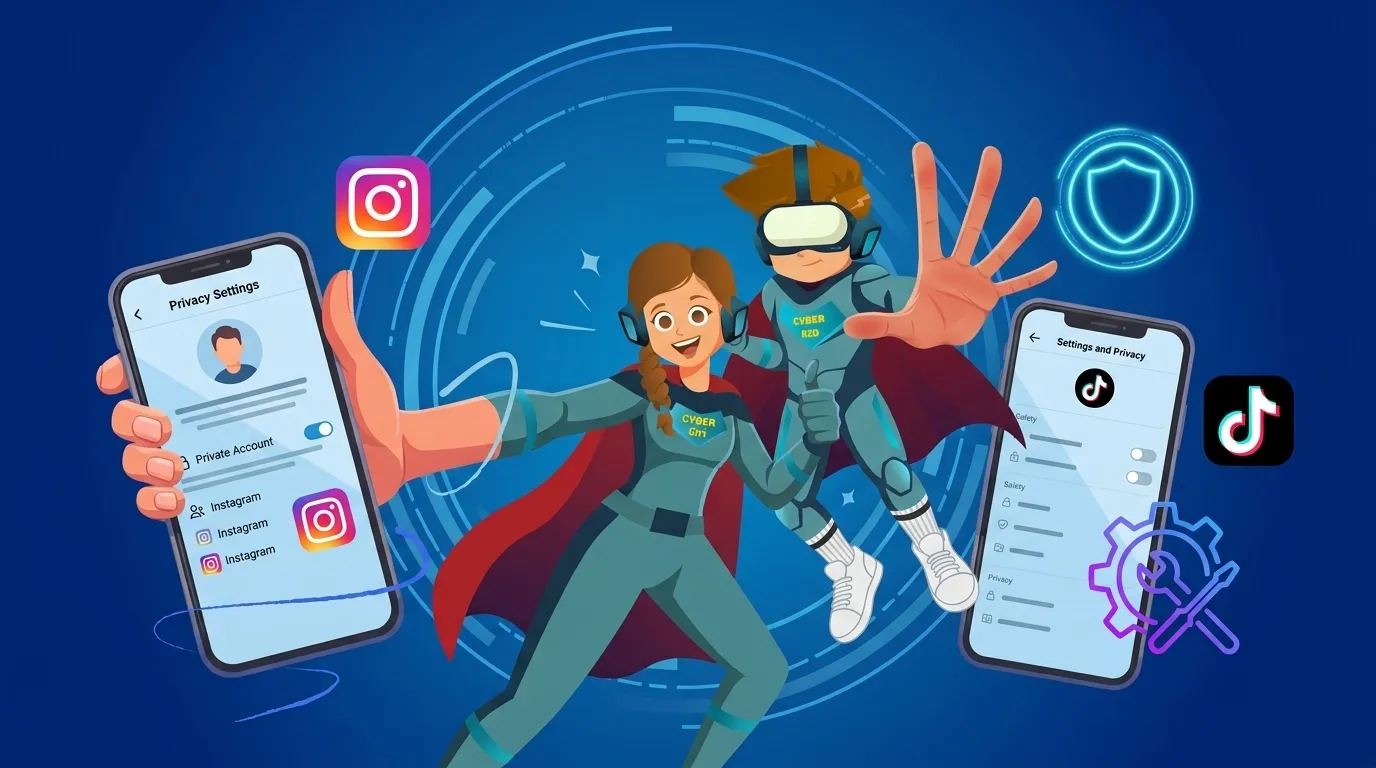
Start protecting your child's privacy on Instagram and TikTok by checking their recorded age, then reviewing private accounts, messages, sharing and family supervision. This guide helps you make decisions together while allowing for differences in age and app version.
Who can reach your child's account?
A privacy review should help your child understand who sees their posts, who can contact them and how to ask for help. Open the account together and ask: “How would you decide whether to accept a follow request from someone you don't know?” You do not need their password for this conversation: let them open the settings while you sit beside them.
First, check the date of birth
Check that the birthday in the account information is accurate. Do not enter an older age to bypass restrictions: some protections depend on age. If it is wrong, use the platform's official correction process. Menu names and available options can vary by language, age and app version, so look for the setting rather than relying on an old screenshot.
Instagram: a checklist to review with your teen
Private account: review account privacy and existing followers. Discuss why each new request should be accepted, and the difference between recognising a name and actually knowing someone.
Messages and mentions: review message requests and mentions, choosing the narrowest suitable audience. Discuss a hypothetical situation: someone offers a gift for a photo or asks to move the conversation to another app.
Activity status: review whether to show when the account is online. Decide together whether this is useful; switching it off does not by itself prevent unwanted contact.
Family supervision: look for Family Center or supervision. Agree on why you are linking accounts and which rules you will review, then follow the in-app instructions.
Teen Accounts include built-in privacy and contact protections. Teens under 16 need parental approval to make certain protections less strict. See Meta's official Teen Accounts overview and its teen messaging rules.
TikTok: review sharing and account discovery
Open privacy settings: from the profile, open the menu, then Settings and privacy, then Privacy. Review the private-account setting and approved followers.
Review content reuse: check downloads, comments, Duet and Stitch. Choose the least sharing appropriate for your child's use, within the options available for their age.
Review suggestions: open Suggest your account to others and review contact syncing. Turning suggestions off does not make the account undiscoverable: some suggestions may still arise from connections and interactions. See TikTok's explanation of suggested accounts.
Review Family Pairing: find Family Pairing and follow the instructions together. Agree when to review your arrangement and what should prompt a request for help.
TikTok direct messaging is unavailable to users under 16. Download and reuse options also depend on age and account privacy. Check TikTok's official teen privacy settings.
Three common questions
Does a private account remove every risk?
No. Review followers and posts too. Agree not to share home or school locations, or details that reveal a daily routine.
Does disabling downloads prevent copying?
Do not treat it as a guarantee against copying or reposting. Teach your child to think about the audience before posting, rather than sharing something simply because the account is private.
What if an upsetting message arrives?
Encourage your child to tell you without fear of punishment. Stop the interaction and review blocking and reporting tools. If it involves threats or sexual requests, seek appropriate professional help and do not recirculate harmful content.
Make privacy a family habit
Review this checklist after major updates or account changes, and let your child explain the options in their own words. Schools can reinforce decision-making and asking for help. Read our Google Family Link guide for parents and explore Cyber Sqool's digital safety programme.
Watch Cyber Sqool's explanations
Watch our Instagram and TikTok privacy video on YouTube, our account safety video on TikTok, or our privacy walkthrough on Facebook. These videos are in Moroccan Arabic (Darija).
For more tips, follow our official accounts on Instagram and X.