Define the need, device and function you can verify before comparing app lists. A practical process for testing controls, reviewing permissions and keeping support available.
The best tool meets your need on your child’s actual device
A family searches for the “best parental control app” and finds long rankings and promises of protection. The question that often determines the choice is simpler: what do we need to manage, and on which device? A tool that works well on one phone may not offer the same function on another. Families can end up paying for a usage report when their main concern is purchase approval or communication inside a particular game.
This guide does not rank companies or promise complete protection. It offers a process for choosing parental controls by device, age and use, with a comparison sheet, a practical trial and a review plan. The aim is to use a tool adults understand and can manage, while children know what it does, why it is there and where to seek help when a setting is not enough.
Write the problem in one sentence before downloading
Replace “I want to monitor everything” with a need you can test: “We need approval before in-game purchases”, “Entertainment apps need a clear stopping point before bedtime” or “We need to review which apps can be downloaded”. Different needs require different tools. You do not have to choose the one that collects the most information.
Distinguish 3 things: a setting that restricts an action, a report describing what happened, and an alert that needs an adult response. A usage report does not establish that purchases are blocked. A website filter does not independently resolve peer pressure in a chat. Write down your expectation so you know what to test.
If the reason for searching is an ongoing problem such as threats or blackmail, do not delay support while comparing products. A tool is part of adult involvement, not a replacement for listening and responding to the situation.
Record both devices: parent and child
Note the child’s device, operating system and version, account type, and whether it is personal, shared or school-managed. Record the parent device that will receive requests too. Do not put passwords on the comparison sheet: you need a description of the setup, not its secrets.
Google’s Family Link FAQ distinguishes a parent using an iPhone from supervising a child’s iOS device: some supervision features do not apply to the child’s iOS or web activity. Check compatibility from the child’s side, not just whether you can install the parent app.
Apple documents parental controls through Screen Time and its family setup, with availability varying by device, software, region and age. Match the instructions to your actual device. A button sequence from an old video should not be assumed to fit every software release.
Choose the function, then examine how it works
Family need | What to look for | A safe way to test |
|---|---|---|
Time management | A schedule, limits and a clear exception process | A short temporary limit on a non-essential app |
Purchases | Approval before eligible purchases | A trial request without completing payment |
Apps | Compatible download or access controls | A familiar, suitable test app |
Websites | The filtering scope and exclusions | Temporarily block an ordinary site, then restore it |
Communication | Device and service-specific settings | Review options without contacting strangers |
Location | A defined need and limited sharing | Identify who can see it and when |
Reports | Understandable measures and limitations | Compare known use with the report |
This is a question matrix, not a promise that every tool offers every function. A game or video platform may require its own settings in addition to device controls. Begin with the main need and add what proves necessary, rather than stacking tools until nobody knows which one caused a restriction.
Age matters, but so do independence and use
A child using a shared device
Priorities may include separating adult accounts from family use, asking before downloads or purchases, and watching together. Check who uses the device afterwards; one configuration may not suit everyone. If a product requires a separate account, read its requirements and the adult’s role before creating it.
A child starting with a personal device
Clarify which requests reach an adult, when someone can respond, and what happens when a school resource is blocked. Show an ordinary request and a temporary exception. Practise reaching an adult when help is needed before relying on an app shutdown schedule.
A teenager developing independence
Explain which information you intend to review, why and when supervision will be reconsidered. A review can focus on sleep, spending and privacy rather than reading every conversation. Keep intervention proportionate to the need, and do not treat every request for independence as evidence of wrongdoing. Discuss a specific concern directly and seek appropriate support where necessary.
9 questions before subscribing
Does the required function work on this exact child device and software version?
Does it require a particular account or family setup, and who manages that?
Does it restrict activity or only describe it?
Which apps and browsers are included, and what falls outside the feature?
Which permissions and information are required, and why?
Who can see reports or location, and how is their access removed?
Can the child make a clear exception or help request?
What is the price after the trial, and how do renewal and cancellation work?
How can we correct or delete information and leave the service?
Keep the answers and the date checked. If a core function is poorly explained, store ratings alone should not fill the gap. Reviews may describe a different device or software version, and may not test the scenario your family needs.
Review permissions before accepting them
Ask what the app can view or control. Does solving an in-game spending problem require precise location at all times? Is access being requested to content unrelated to the purpose? Many permissions do not automatically make a product unsuitable, but they deserve a clear explanation and comparison with necessity.
Use the official source and verify the publisher. Avoid modified copies promising wider monitoring. Be cautious about tools that encourage hiding surveillance or disabling device protections without trustworthy explanation. Keep adult account recovery information safe, and do not treat a shared child password as a permanent family-management solution.
Agree who may review reports. Having several adults involved does not mean sharing access with everyone. The purpose may be educational support, not exposing a child’s life to relatives who have no need to see it. Review permissions again when family circumstances change.
A practical trial taking roughly 20 minutes
1. Record the starting point. Note the setting you will test and how to restore it. Use a non-essential app and preserve important communication and school access. This duration is an organisational suggestion, not a guaranteed setup time.
2. Test one function. Try a short temporary limit or block an ordinary site and restore it. Do not search for harmful material to test a filter, or spend money to demonstrate a purchase request. Examine what the child sees, what the adult receives and what the request actually authorises.
3. Rehearse an exception. Imagine schoolwork needs extra time or access. Can the child request it? Does it reach the right adult? Is the waiting process clear without unnecessarily disrupting study? Record an actual problem rather than assuming the child is trying to evade a rule.
4. Practise returning to normal. Undo the temporary setting and check the device works as agreed. If another tool appears to conflict, pause the trial and consult official support. Avoid changing several settings at once and then guessing which caused the problem.
5. Ask the child. What was clear? What was confusing or seemed unfair? Use the answer to improve the setup and agreement, not to label every objection as resistance to protection. Record what remains untested: one successful feature does not validate every other function.
A decision sheet you can copy
Our main need: … Child device and version: … Parent device: … Verified function: … What it does not cover: … Required information: … Trial result: … Price and renewal: … Review date: …
Describe the decision practically: “We use this setting for download approval, review privacy inside the game, and talk about unfamiliar requests.” That is more accurate than “the device is protected”. Keep the sheet for responsible adults without adding passwords, location history or conversation details.
Filtering does not resolve every situation
Google notes that filtering options are imperfect. Treat that limitation as a reason to continue adult involvement, not abandon every tool. Discuss what the child can do when upsetting material appears, when a known person pressures them, or when someone requests a verification code. Do not wait for an alert before taking their concern seriously.
A long usage report may reflect schoolwork or an important conversation. Ask about context before deciding. Low numbers do not prove that harm is absent. The adult’s role is to interpret indicators with the child and build support beyond what the software can detect.
Review after a week and after an important change
Return to the original need: Are unintended purchases reduced? Do requests arrive? Has a learning resource been blocked? Gather simple examples without a comprehensive inspection. After a major update, account change or new device, test the core function again rather than assuming settings transferred unchanged.
Connect the tool with a family internet agreement. For implementation detail, consult our Family Link guide or iPhone Screen Time guide, matching instructions against the current version.
3 examples of different families making different decisions
The parent has an iPhone; the child uses Android
The issue is not whether the phones share a brand, but whether the management function supports the child device and account. Identify download approval, time or spending as the priority, consult official compatibility information and test request delivery. Do not buy a replacement phone simply because different devices appear inconvenient; first establish the actual requirement.
The concern is inside one game
If the concern involves game messages, write down the service and required options: who may communicate, whether a private space exists, and how blocking and reporting work. Device-time reports may not describe that experience. Review the game’s settings with the child and discuss responding to pressure rather than adding a time-measuring app that does not address the issue.
A school-managed device comes home
Ask the school who manages the device and what families may change. Do not add a management profile or a conflicting tool without coordinating with the school. Clarify what staff can see, who receives concerns and how the child completes homework. A device used in two settings needs clear responsibilities.
Frequently asked questions
Are paid tools better than free ones?
Compare the need, working features, privacy, support and full cost. Do not pay for features that do not run on the child’s device or are unnecessary. Test the important scenario before committing to an ongoing subscription.
Do we need more than one app?
Device settings, service controls and conversation may be sufficient. Adding another tool needs a defined reason and a conflict check, rather than an assumption that more means better protection.
Can software replace talking with a child?
No. Families need a way to ask for support and respond to mistakes. At Cyber Sqool, we connect digital skills to situations and supportive adults. Technical settings help that work; they do not complete it on a family’s behalf.
Sources and editorial notes
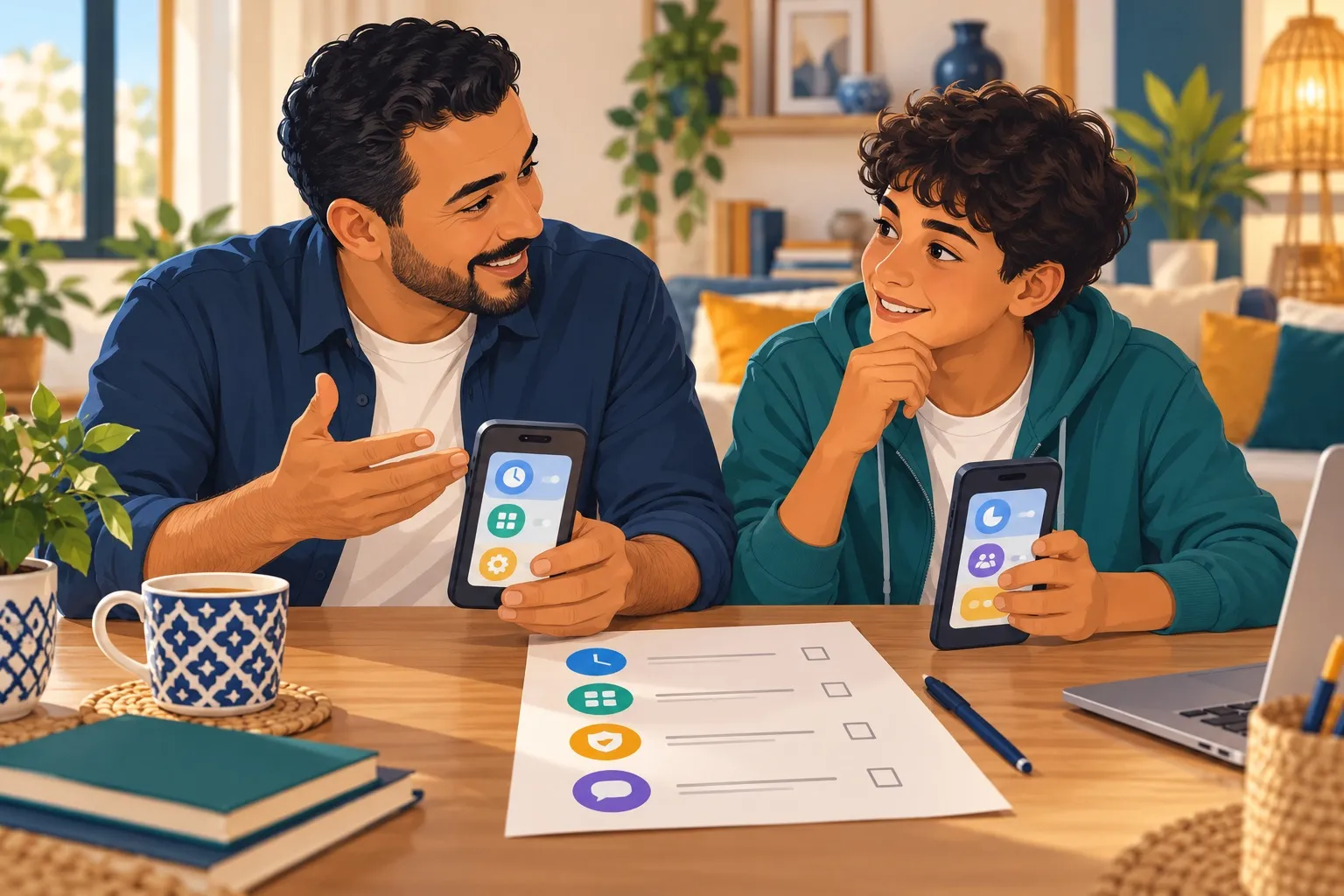
Information checked on 28 October 2026: Google Family Link FAQ and Apple: Set up parental controls on iPhone and iPad. Features vary by device, software, region and account. The decision sheet, trial and questions are original editorial tools, not laboratory product tests. The cover is a fictional illustration. This guide contains no affiliate links.